

After my last template tutorial, I had a couple of questions about converting square templates to letter sized templates so today I am sharing a tutorial to show you how to do just that! If you’re a rectangle scrapper, you can easily convert any square template using the steps below.
In Photoshop CC 2018
- Open up a new workspace 8.5 X 11 at 300dpi with a white fill.
- Open up the 12 x 12 template you want to use.
- In your workspace you will have 2 windows (One untitled-1 and one is the 12×12 template)

Switch to the 12 X 12 template and highlight all the layers in the layers palette.

With the layers in the layers palette highlighted, right click with your mouse and select duplicate. When the box comes up, go to the document set menu drop down and select the 8.5 x 11 new workspace (mine is called Untitled-1). This will duplicate the layers from the 12 x 12 template and place them in the 8.5 x 11 workspace.

Using the transform tool (Edit>Transform Scale) transform the layers so the left side has the top and bottom of the template reflected. Apply the transformation.

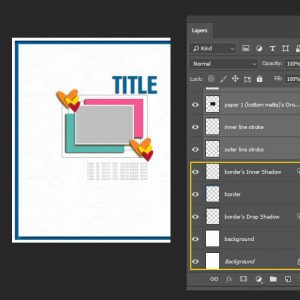
Go back to the layers palette and using the ctrl key on a PC or cmd key on a Mac, click on the background layer and on this particular template, the border and inner shadow to deselect them. The rest of the layers in the layers palette should still be selected. Move the element/place holders of the template to where you want them in the 8.5 x 11 workspace.

Now you will want to deselect all layers, and then select just the layers that were not selected before: Background, border etc., and then using the transform tool again move the right edge in until the transform box gets to the edge of your 8.5 X 11 workspace.

Deselect. You should now be ready to scrap on your new 8.5 X 11 workspace.


Using this format you can do the same with all templates to use in different sized formats. Here is how the templates look side by side:
Using Photoshop Elements 15
All the steps are exactly the same in PSE15 as in PhotoShop! Here’s what it looks like with the photo bin and the duplicate box that pops up:

All the same steps apply regardless of whether you are using Photoshop or PSE to transform your template.
I hope this helps! If you have any questions, or if there are other tutorials you’d like to see please let me know. Enjoy!

 DIY Halloween photograph album
For the first time ever, I have learned how to resize a template. I use PSE 15 and it is not always easy to find really good tutorials for PSE when everything is geared to PS. Thank you Christa for writing the tutorial and Kate for the awesome templates. It was so easy to follow and I am just thrilled that I actually could do this.
Thanks again.
Cynthia
Oh my goodness Cynthia.. you are so very welcome and I am literally beaming here that you had an easy time following it and it helped you with learning how to resize 🙂